
A monitor upgrade can make a bigger difference than upgrading your CPU or GPU — sharper text, smoother motion, and less eye strain all come down to the panel you’re staring at for hours a day. But “bigger is better” isn’t always true, and gaming needs are very different from work/productivity needs. Here’s exactly what to check before buying.
How Do You Know If You Need a New Monitor?
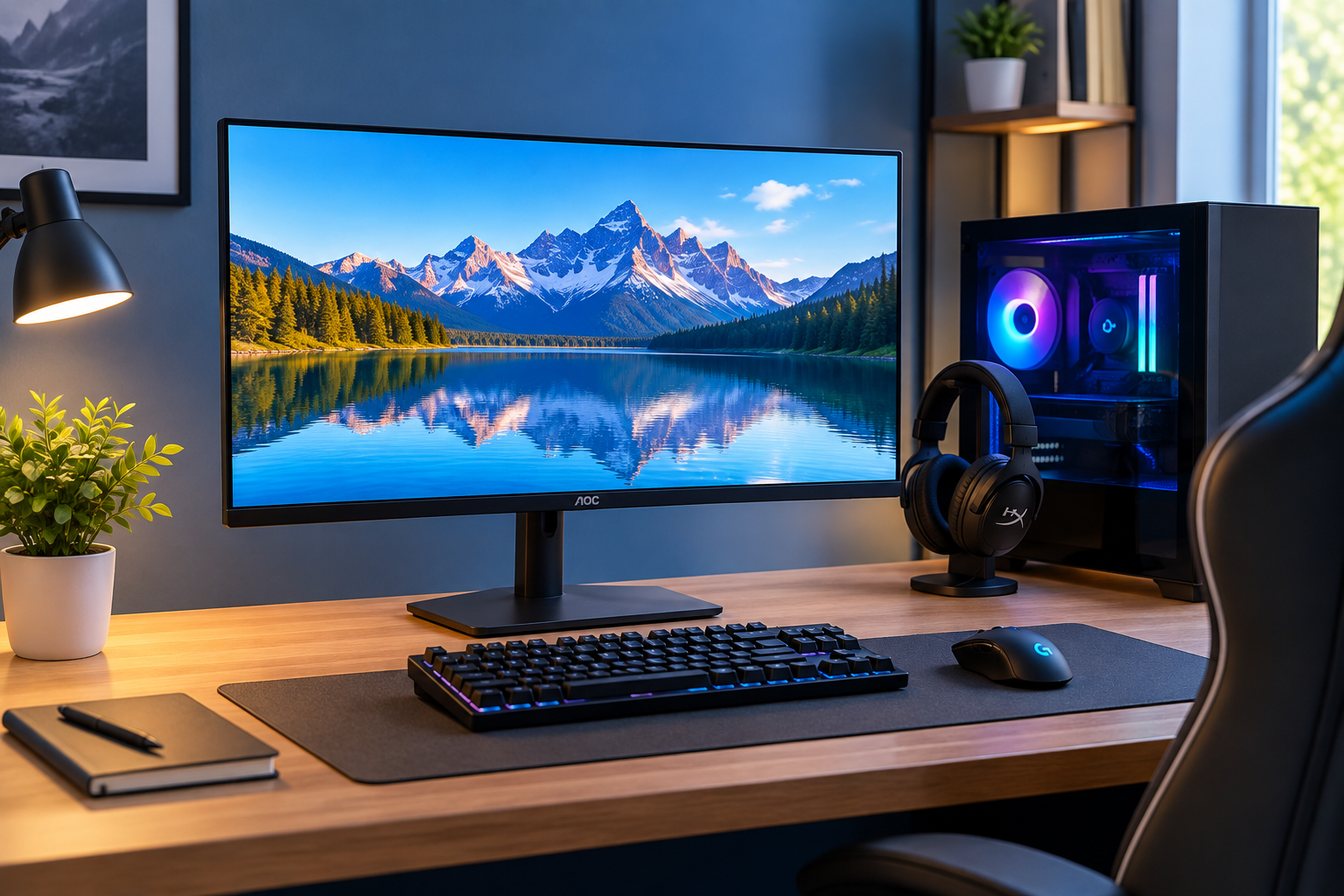
A few signs it’s time to upgrade:
- Text looks blurry or you find yourself squinting at small UI elements
- Fast motion in games looks blurry or “ghosts” behind moving objects
- You’re constantly switching windows because your screen feels too small
- Colors look washed out or inconsistent compared to your phone or TV
- You get eye strain or headaches after long work sessions
If any of these sound familiar, matching the right monitor to your actual use case (gaming vs. work vs. both) will make a bigger difference than just buying the most expensive option available.
What Types of Monitors Should You Consider?
Gaming Monitors
Prioritize high refresh rates and fast response times over color accuracy. Best for competitive or fast-paced games where smoothness matters more than pixel-perfect color. The KTC 27″ QHD 144Hz Gaming Monitor is a solid example, combining 1440p resolution with 144Hz, FreeSync, and G-Sync compatibility.
Productivity/Office Monitors
Prioritize screen real estate, sharp text, and eye comfort features (flicker-free, blue light filtering) over raw speed. Best for spreadsheets, documents, coding, and multitasking.
The ArcticPro 27″ FHD 144Hz Monitor is a good example — an IPS panel with anti-blue light design built for comfortable long work sessions.
Ultra-wide Monitors
Wider aspect ratio (21:9 or 32:9) that replaces dual-monitor setups with a single screen — great for multitasking or immersive gaming without a bezel in the middle.
The Sceptre 34″ Curved Ultrawide WQHD Monitor is a great example, offering 3440×1440 resolution, up to 180Hz, and 99% sRGB coverage.
Creative/Color-Accurate Monitors
Built for photo/video editing and design work, with wide color gamut coverage (sRGB, Adobe RGB, DCI-P3) and factory color calibration.
The ASUS ProArt PA278QV is a strong example, Calman Verified with 100% sRGB coverage and ΔE < 2 color accuracy for professional editing work.
What Specs Actually Matter When Choosing a Monitor?
1. How Big and What Resolution Should You Get?
Resolution and size need to scale together, or text/images end up too small or too pixelated:
| Size | Recommended Resolution |
|---|---|
| 24″ | 1080p (Full HD) |
| 27″ | 1440p (QHD) — sweet spot for most people |
| 32″+ | 4K (UHD) |
| 34″+ ultrawide | 1440p ultrawide or higher |
Going 4K on a 24″ screen is overkill; going 1080p on a 32″ screen will look noticeably soft.
2. How High a Refresh Rate Do You Need?
Refresh rate (measured in Hz) determines how smooth motion looks:
| Refresh Rate | Best For |
|---|---|
| 60Hz | Office work, general browsing, media |
| 75–100Hz | Casual gaming, noticeably smoother than 60Hz |
| 144Hz | Competitive gaming, the current sweet spot |
| 165–240Hz+ | Fast-paced esports titles (FPS, racing) |
If you’re not gaming competitively, 60-75Hz is genuinely fine — don’t overspend on Hz you won’t notice. For competitive players, the Z-Edge UG25S Gaming Monitor pushes up to 300Hz with a 1ms response time for fast-paced esports titles.
3. What Panel Type Should You Choose?
- IPS — best color accuracy and viewing angles, good all-rounder for both work and gaming
- VA — better contrast and deeper blacks, but slower response times than IPS
- TN — fastest response times and cheapest, but weaker colors and viewing angles (mostly found on budget gaming monitors)
For most people splitting time between work and gaming, IPS is the safest choice today.
4. How Much Does Response Time Matter?
Response time (measured in ms) affects motion blur and ghosting. For gaming, look for 1-5ms. For office/productivity use, this barely matters — even a 10ms panel is fine for spreadsheets and documents.
5. What Connectivity Do You Need?
- HDMI 2.1 — needed for 4K at 120Hz+ (especially for console gaming)
- DisplayPort 1.4 — the standard for high refresh rate PC gaming
- USB-C with power delivery — lets you connect and charge a laptop with a single cable, great for simplifying a desk setup
Check that your PC or laptop’s ports actually support the monitor’s max refresh rate and resolution — a monitor capable of 144Hz won’t hit that speed over an outdated cable or port. The Philips 27E1N5900R 4K Monitor is a great example, offering 4K UHD, HDR 400, and 65W USB-C power delivery to charge a laptop with a single cable.
6. Do You Need Adaptive Sync (G-Sync/FreeSync)?
These technologies sync your monitor’s refresh rate with your GPU’s output to reduce screen tearing. FreeSync works with AMD and most modern Nvidia cards; G-Sync is Nvidia-specific and typically found on pricier monitors. If you play fast-paced games, this feature meaningfully improves the experience.
How Much Should You Spend on a Monitor?
Budget ($100–$200)
Covers solid 1080p or entry-level 1440p monitors with 75-100Hz refresh rates — good for casual gaming and everyday work. The LG 27U411A-B 27″ IPS Monitor is a good example, offering 120Hz, HDR10, and flicker-safe eye comfort at an affordable price.
Mid-Range ($200–$450)
This tier covers most buyers well — 1440p resolution, 144Hz+ refresh rates, IPS panels, and solid build quality without paying for extras you won’t use. The KTC 27″ Curved Gaming Monitor is a great example, offering 1440p, 144Hz, a 1500R curve, and HDR400 at a mid-range price.
Premium ($450+)
Includes 4K resolution, ultrawide formats, higher refresh rates (240Hz+), and professional color accuracy for creative work. The LXZ 27″ 4K UHD 144Hz Monitor is a strong example, pairing 4K resolution with a fast 144Hz refresh rate and HDMI 2.1 connectivity.
How Do You Set Up Your Monitor for Comfort and Longevity?
- Position the top of the screen at or slightly below eye level to reduce neck strain
- Sit roughly an arm’s length away from the screen
- Use built-in blue light filtering or a night mode setting for evening use
- Avoid running at max brightness in a dark room — matching brightness to ambient light reduces eye strain
- Consider a monitor arm for easier height/angle adjustment, especially with larger or ultrawide screens
Consider a WALI Gas Spring Monitor Arm, which fits screens from 17-34″ and up to 26.4 lbs for easy height and angle adjustment.
So, How Do You Choose the Right Monitor for You?
Start with your primary use case — competitive gaming calls for high refresh rates and fast response times, while work and creative tasks call for resolution, color accuracy, and screen space. Most people land well with a 27″ 1440p IPS monitor at 144Hz, which handles both gaming and productivity without major compromises in either direction.
If you’re building out a full desk setup, it’s worth also checking our best budget laptops guide or comparing options in our phone RAM guide to round out your tech decisions.
Disclosure: As an Amazon Associate, we earn from qualifying purchases made through links on this page.